Install  Windows Flasher on
  Raspberry Pi
Windows Flasher
Install Windows 10 or Windows 11 on a Raspberry Pi SD card.
This tool is a 100% legal way to use any Debian or Ubuntu Linux operating system to flash a RPi's SD card with the necessary files to run Windows 10 or 11.Usage is simple:
- Choose an operating system version. (Windows 11, Windows 10, Custom version)
- Choose what model Pi will be running Windows. (RPi4 or RPi3)
- Choose a language.
- Choose a storage drive to flash.
- Click Flash.
It's as simple as that. WoR-flasher takes care of the rest - downloading hundreds of files from Microsoft, generating a Windows image with them, importing the custom RPi drivers, enabling the WinPE environment, and much more. When finished, WoR-flasher will tell you exactly what to do next.To run: Menu -> Accessories -> WoR-Flasher
To run the graphical interface in a terminal: ~/wor-flasher/install-wor-gui.sh
To run the command-line interface in a terminal: ~/wor-flasher/install-wor.shIf you encounter problems, we recommend you run WoR-flasher in a terminal to catch any errors.
Fortunately, Windows Flasher is very easy to install on your Raspberry Pi in just two steps.
- Install Pi-Apps - the best app installer for Raspberry Pi.
- Use Pi-Apps to install Windows Flasher.
Compatibility
For the best chance of this working, we recommend using the latest 64-bit version of Raspberry Pi OS, which is currently version Trixie.
Raspberry Pi OS has 32-bit and 64-bit variants, both of which will run on most Raspberry Pi computers, including the Pi 3, Pi 4, and Pi5.
Windows Flasher will run on either PiOS 32-bit or 64-bit.
Install Pi-Apps
Pi-Apps is a free tool that makes it incredibly easy to install the most useful programs on your Raspberry Pi with just a few clicks.
Open a terminal and run this command to install Pi-Apps:
wget -qO- https://raw.githubusercontent.com/Botspot/pi-apps/master/install | bashFeel free to check out the Pi-Apps source code here: https://github.com/Botspot/pi-apps
Install Windows Flasher
Now that you have Pi-Apps installed, it is time to install Windows Flasher.
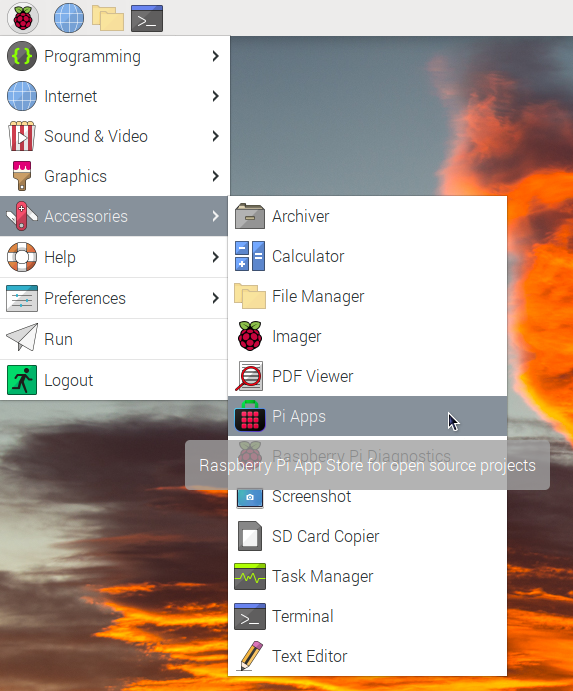
First launch Pi-Apps from your start menu:
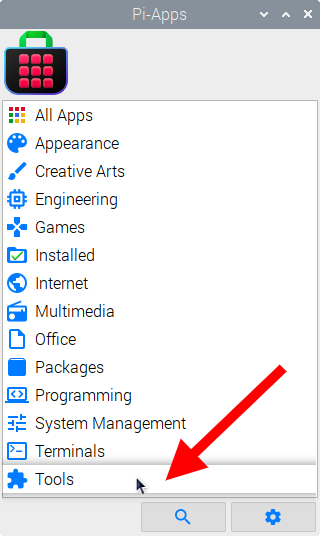
Then click on the Tools category.
Now scroll down to find Windows Flasher in the list.
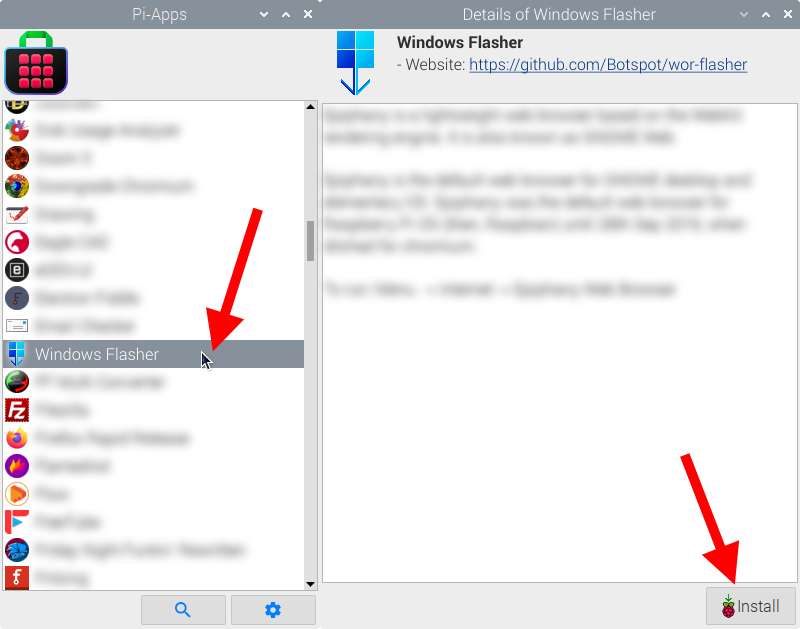
Just click Install and Pi-Apps will install Windows Flasher for you!
Pi-Apps is a free and open source tool made by Botspot, theofficialgman, and other contributors. Find out more at https://pi-apps.io