Install  Packet on
  Raspberry Pi
Packet
A partial implementation of Google's Quick Share protocol that lets you send and receive files wirelessly from Android devices using Quick Share, or another device with Packet.
Packet may require Bluetooth to be enabled for some devices. The devices must be connected to a Wi-Fi network with mDNS.
Fortunately, Packet is very easy to install on your Raspberry Pi in just two steps.
- Install Pi-Apps - the best app installer for Raspberry Pi.
- Use Pi-Apps to install Packet.
Compatibility
For the best chance of this working, we recommend using the latest 64-bit version of Raspberry Pi OS, which is currently version Trixie.
Raspberry Pi OS has 32-bit and 64-bit variants, both of which will run on most Raspberry Pi computers, including the Pi 3, Pi 4, and Pi5.
Packet will only run on PiOS 64-bit. Pi-Apps will not let you install Packet on PiOS 32-bit.
Install Pi-Apps
Pi-Apps is a free tool that makes it incredibly easy to install the most useful programs on your Raspberry Pi with just a few clicks.
Open a terminal and run this command to install Pi-Apps:
wget -qO- https://raw.githubusercontent.com/Botspot/pi-apps/master/install | bashFeel free to check out the Pi-Apps source code here: https://github.com/Botspot/pi-apps
Install Packet
Now that you have Pi-Apps installed, it is time to install Packet.
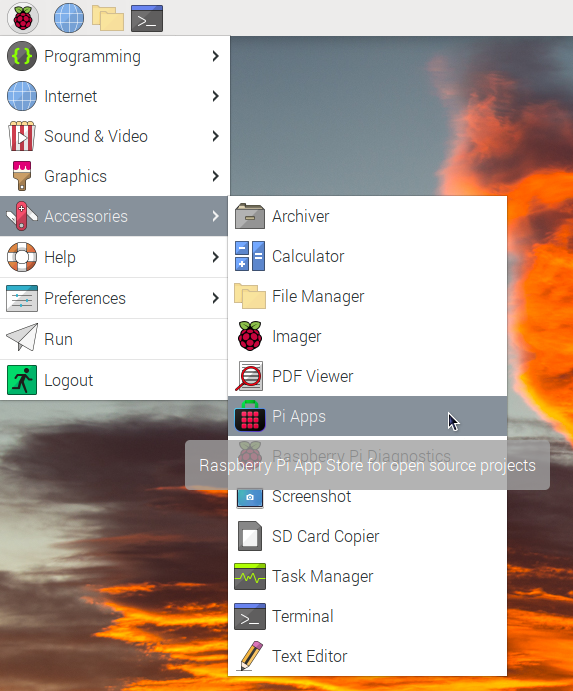
First launch Pi-Apps from your start menu:
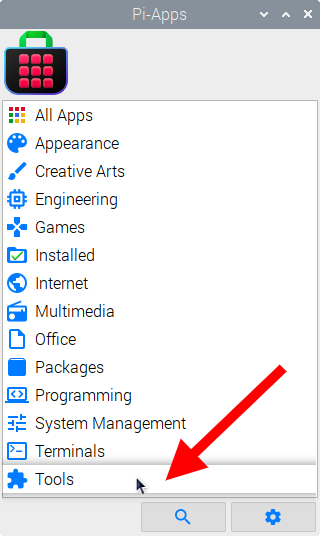
Then click on the Tools category.
Now scroll down to find Packet in the list.
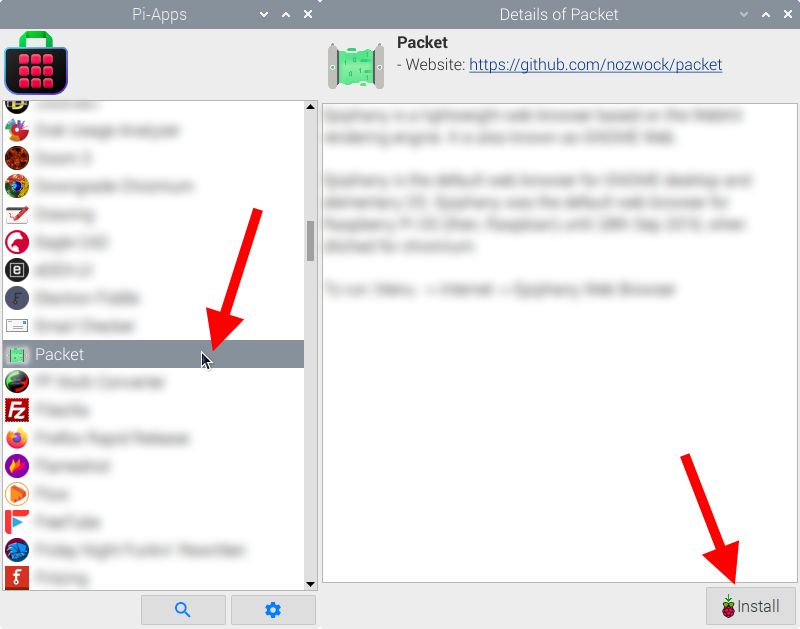
Just click Install and Pi-Apps will install Packet for you!
Pi-Apps is a free and open source tool made by Botspot, theofficialgman, and other contributors. Find out more at https://pi-apps.io