Install  OrcaSlicer on Linux ARM Device
OrcaSlicer
Get even more perfect 3D prints!
OrcaSlicer is a powerful, free and open-source 3D printer slicer with cutting edge features for FDM printing. It supports a wide range of printers from manufacturers including Bambu Lab, Prusa, Voron, Creality, and many more.To run: Menu -> Graphics -> OrcaSlicer
To run in a terminal: flatpak run com.orcaslicer.OrcaSlicer
Fortunately, OrcaSlicer is very easy to install on your Linux ARM Device in just two steps.
- Install Pi-Apps - the best app installer for Linux ARM Device.
- Use Pi-Apps to install OrcaSlicer.
Compatibility
For the best chance of this working, we recommend using the latest LTS of Ubuntu or Debian from your hardware manufacturer.
OrcaSlicer will only run on an Ubuntu/Debian ARM64 OS. Pi-Apps will not let you install OrcaSlicer on an Ubuntu/Debian ARM32 OS.
Install Pi-Apps
Pi-Apps is a free tool that makes it incredibly easy to install the most useful programs on your Linux ARM Device with just a few clicks.
Open a terminal and run this command to install Pi-Apps:
wget -qO- https://raw.githubusercontent.com/Botspot/pi-apps/master/install | bashFeel free to check out the Pi-Apps source code here: https://github.com/Botspot/pi-apps
Install OrcaSlicer
Now that you have Pi-Apps installed, it is time to install OrcaSlicer.
First launch Pi-Apps from your start menu:
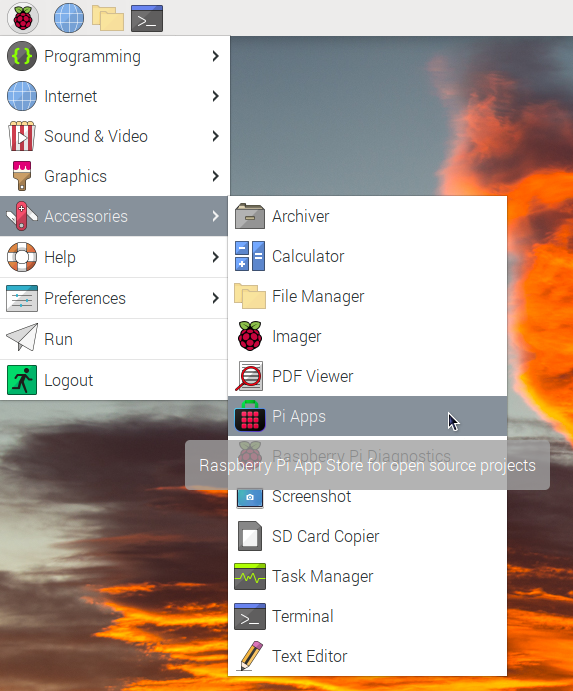
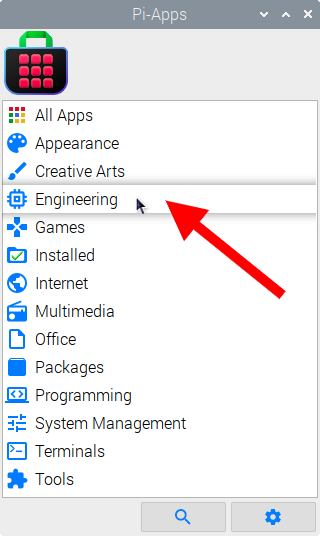
Then click on the Engineering category.
Now scroll down to find OrcaSlicer in the list.
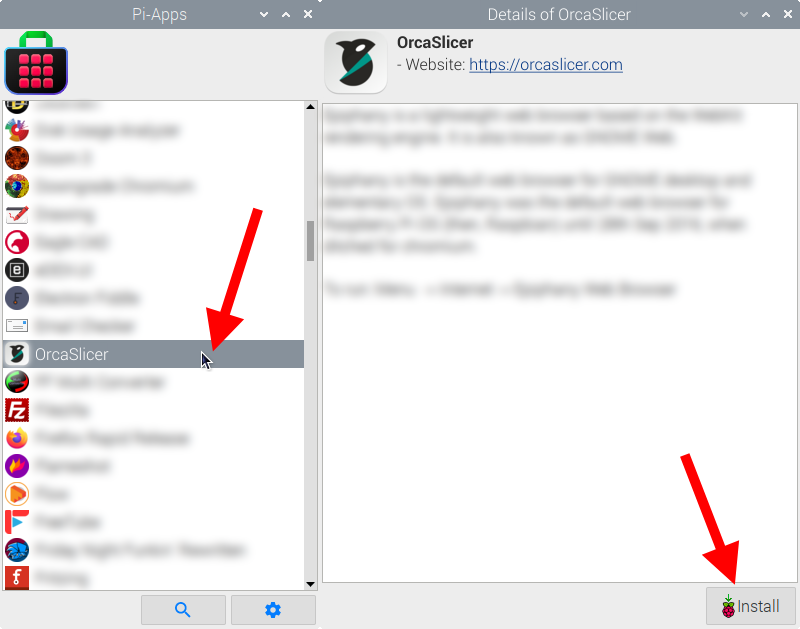
Just click Install and Pi-Apps will install OrcaSlicer for you!
Pi-Apps is a free and open source tool made by Botspot, theofficialgman, and other contributors. Find out more at https://pi-apps.io