Install  OBS Studio on
  Raspberry Pi
OBS Studio
Free and open source software for video recording and live streaming.
Available Versions:
ARM32/ARM64 - Debian Bookworm: 30.2.2
ARM64 - Ubuntu Noble: 30.2.2
ARM64 - Ubuntu Jammy: 30.2.2
ARM32/ARM64 - Debian Bullseye: 29.1.3
ARM64 - Ubuntu Focal: 29.1.3
ARM64 - Ubuntu Bionic: 28.1.2To run: Menu -> Sound & Video -> OBS Studio
To run in a terminal: obs
Fortunately, OBS Studio is very easy to install on your Raspberry Pi in just two steps.
- Install Pi-Apps - the best app installer for Raspberry Pi.
- Use Pi-Apps to install OBS Studio.
Compatibility
For the best chance of this working, we recommend using the latest 64-bit version of Raspberry Pi OS, which is currently version Trixie.
Raspberry Pi OS has 32-bit and 64-bit variants, both of which will run on most Raspberry Pi computers, including the Pi 3, Pi 4, and Pi5.
OBS Studio will run on either PiOS 32-bit or 64-bit.
Install Pi-Apps
Pi-Apps is a free tool that makes it incredibly easy to install the most useful programs on your Raspberry Pi with just a few clicks.
Open a terminal and run this command to install Pi-Apps:
wget -qO- https://raw.githubusercontent.com/Botspot/pi-apps/master/install | bashFeel free to check out the Pi-Apps source code here: https://github.com/Botspot/pi-apps
Install OBS Studio
Now that you have Pi-Apps installed, it is time to install OBS Studio.
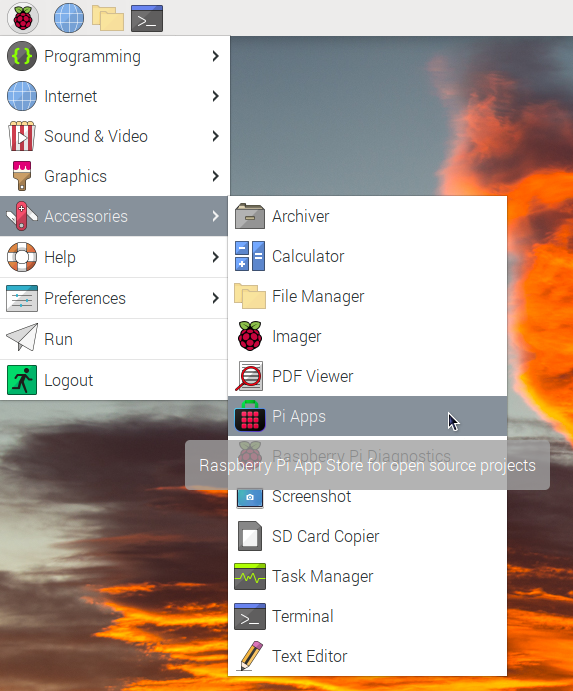
First launch Pi-Apps from your start menu:
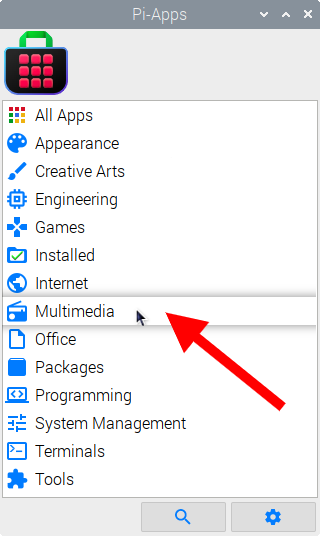
Then click on the Multimedia category.
Now scroll down to find OBS Studio in the list.
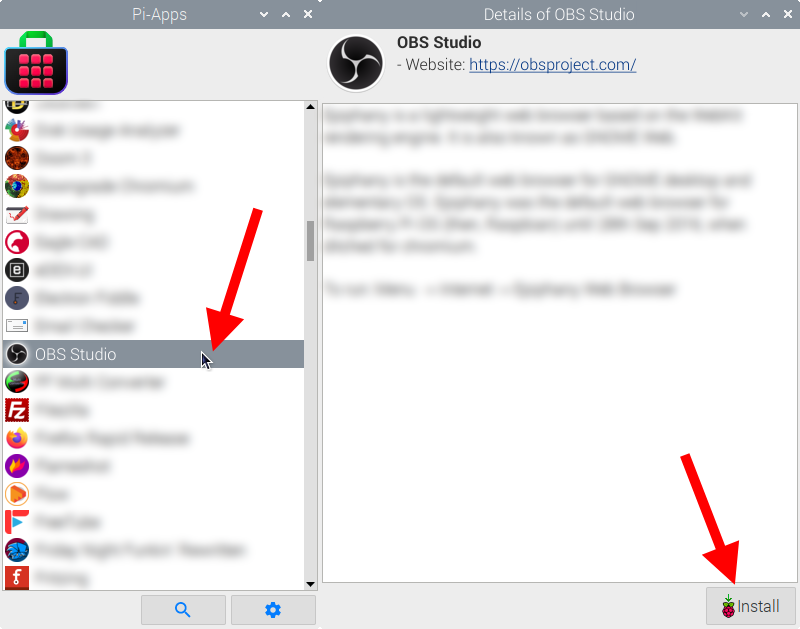
Just click Install and Pi-Apps will install OBS Studio for you!
Pi-Apps is a free and open source tool made by Botspot, theofficialgman, and other contributors. Find out more at https://pi-apps.io