Install  Bongo Cam on
  Nintendo Switch
Bongo Cam
If you want to make a video but don't want to show your face, why not use this animated cat program?
This app displays a cat. It can type on the keyboard or move the mouse. It mirrors your mouse movements.Default keyboard shortcuts: Z and X to tap on the keyboard, C to wear sunglasses, and V to wave.
To run: Menu -> Sound & Video -> Bongo Cam
To run in a terminal: bongoGo here for configuration options: https://github.com/kuroni/bongocat-osu/wiki/Settings
NOTE: This app can't see your mouse movements on Wayland desktops. To make it work the best, switch to X11.
Fortunately, Bongo Cam is very easy to install on your Nintendo Switch in just two steps.
- Install Pi-Apps - the best app installer for Nintendo Switch.
- Use Pi-Apps to install Bongo Cam.
Compatibility
For the best chance of this working, we recommend using the latest version of Switchroot L4T Ubuntu Noble, which is currently version 5.1.2 Ubuntu Noble.
Bongo Cam will run on L4T Ubuntu ARM64.
Install Pi-Apps
Pi-Apps is a free tool that makes it incredibly easy to install the most useful programs on your Nintendo Switch with just a few clicks.
Open a terminal and run this command to install Pi-Apps:
wget -qO- https://raw.githubusercontent.com/Botspot/pi-apps/master/install | bashFeel free to check out the Pi-Apps source code here: https://github.com/Botspot/pi-apps
Install Bongo Cam
Now that you have Pi-Apps installed, it is time to install Bongo Cam.
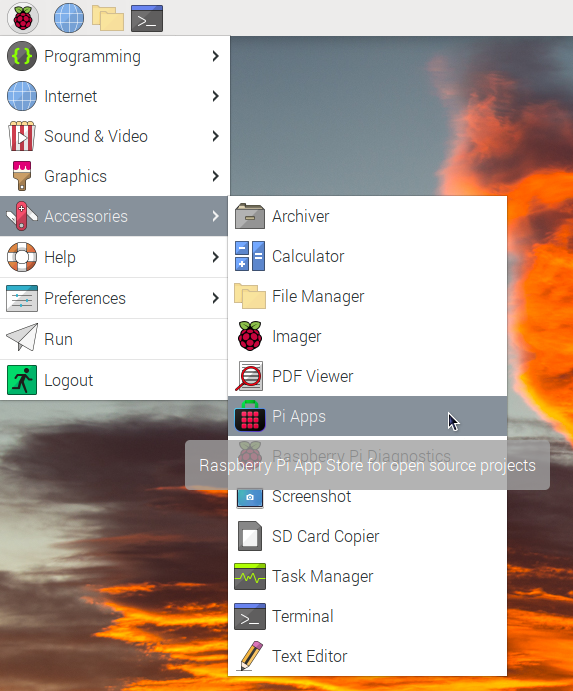
First launch Pi-Apps from your start menu:
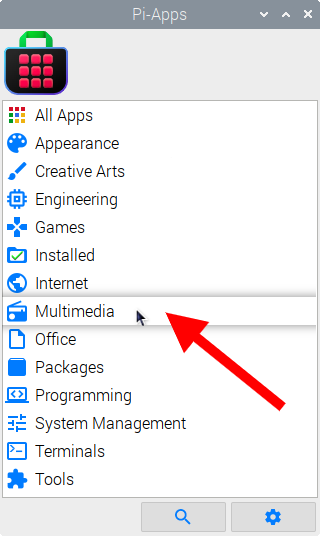
Then click on the Multimedia category.
Now scroll down to find Bongo Cam in the list.
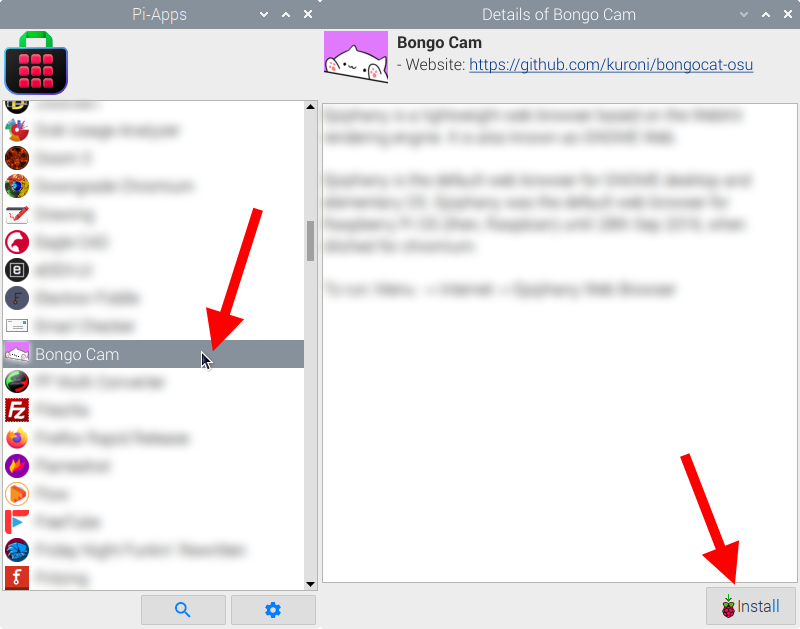
Just click Install and Pi-Apps will install Bongo Cam for you!
Pi-Apps is a free and open source tool made by Botspot, theofficialgman, and other contributors. Find out more at https://pi-apps.io