Install  Azahar on
  Raspberry Pi
Azahar
Azahar is an open-source 3DS emulator project based on Citra.
It was created from the merging of PabloMK7's Citra fork and the Lime3DS project, both of which emerged shortly after Citra was taken down.
The goal of this project is to be the de-facto platform for future development.IMPORTANT: You have to disable hardware shaders for playable performance:
Azahar Menu -> Emulation -> Configure -> Graphics -> Advanced -> Turn OFFEnable hardware shaderTo run from menu: Games -> Azahar
To run from terminal: flatpak run org.azahar_emu.Azahar
Fortunately, Azahar is very easy to install on your Raspberry Pi in just two steps.
- Install Pi-Apps - the best app installer for Raspberry Pi.
- Use Pi-Apps to install Azahar.
Compatibility
For the best chance of this working, we recommend using the latest 64-bit version of Raspberry Pi OS, which is currently version Trixie.
Raspberry Pi OS has 32-bit and 64-bit variants, both of which will run on most Raspberry Pi computers, including the Pi 3, Pi 4, and Pi5.
Azahar will only run on PiOS 64-bit. Pi-Apps will not let you install Azahar on PiOS 32-bit.
Install Pi-Apps
Pi-Apps is a free tool that makes it incredibly easy to install the most useful programs on your Raspberry Pi with just a few clicks.
Open a terminal and run this command to install Pi-Apps:
wget -qO- https://raw.githubusercontent.com/Botspot/pi-apps/master/install | bashFeel free to check out the Pi-Apps source code here: https://github.com/Botspot/pi-apps
Install Azahar
Now that you have Pi-Apps installed, it is time to install Azahar.
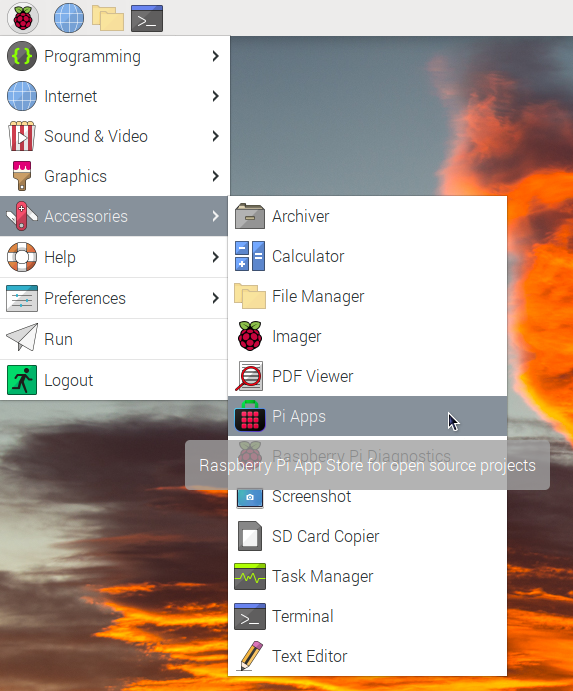
First launch Pi-Apps from your start menu:
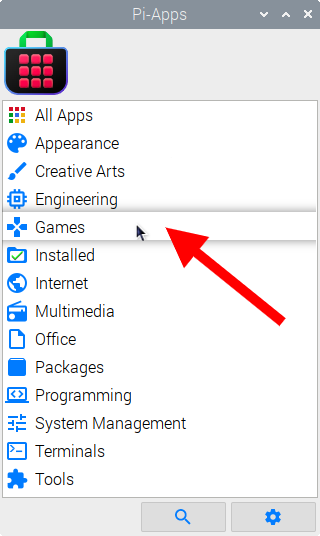
Then click on the Games category.
Now scroll down to find Azahar in the list.
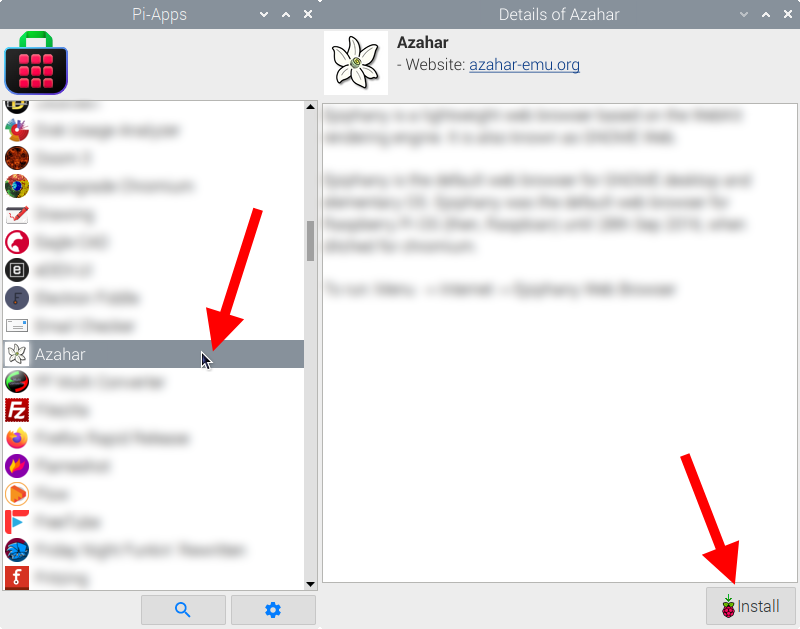
Just click Install and Pi-Apps will install Azahar for you!
Pi-Apps is a free and open source tool made by Botspot, theofficialgman, and other contributors. Find out more at https://pi-apps.io